Connect your agent to WhatsApp
Get a free test number from Meta and set up your agent to message you on WhatsApp.
This guide will help you get a test phone number and set up your agent to use that number to message you on WhatsApp. Following it will require you to open three different browser tabs and follow precise instructions. No technical skills are required.
Disclaimer: Sharing your agent with any other WhatsApp account or group strictly violates Meta's terms of use and ours, and will get your account suspended. Only use your own phone number to talk to your agent.
What to expect:
- You will create a developer account on Meta and get a test number. This is a free service provided by Meta for testing purposes, and as such Meta can change or remove this service at any time.
- Your agent will not work in WhatsApp groups, or with any account other than yours.
- Your agent cannot send you a message on its own unless there is an active chat session, and a session only lasts 24 hours. To make sure reminders and scheduled messages reach you, keep a session alive by sending at least one message every 24 hours.
1Create a Meta app
Sign in to developers.facebook.com and create a new app.
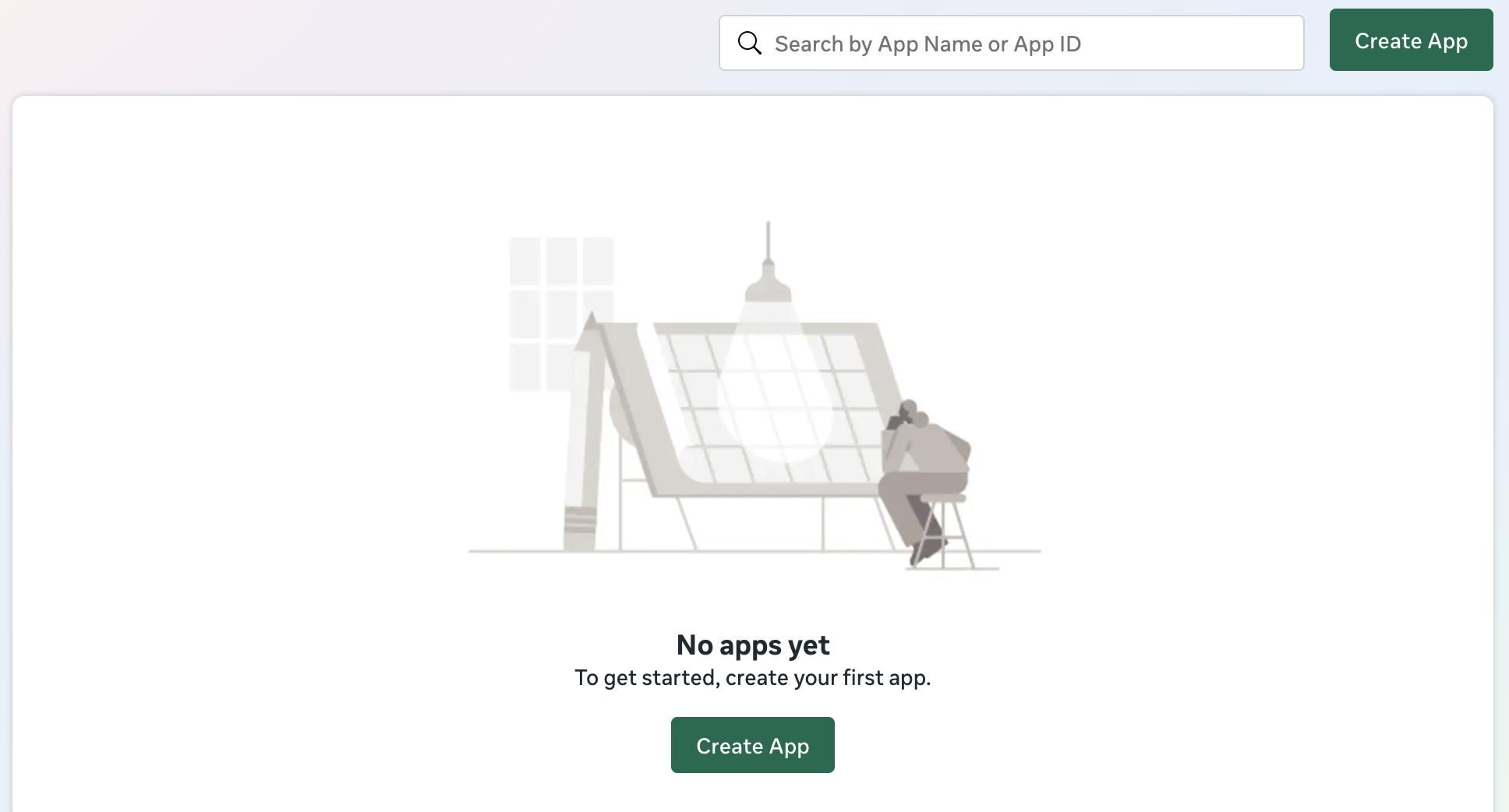
This opens a five-step app creation process.
- Enter an app name. Use <Your-Name>'s Assistant as the name.
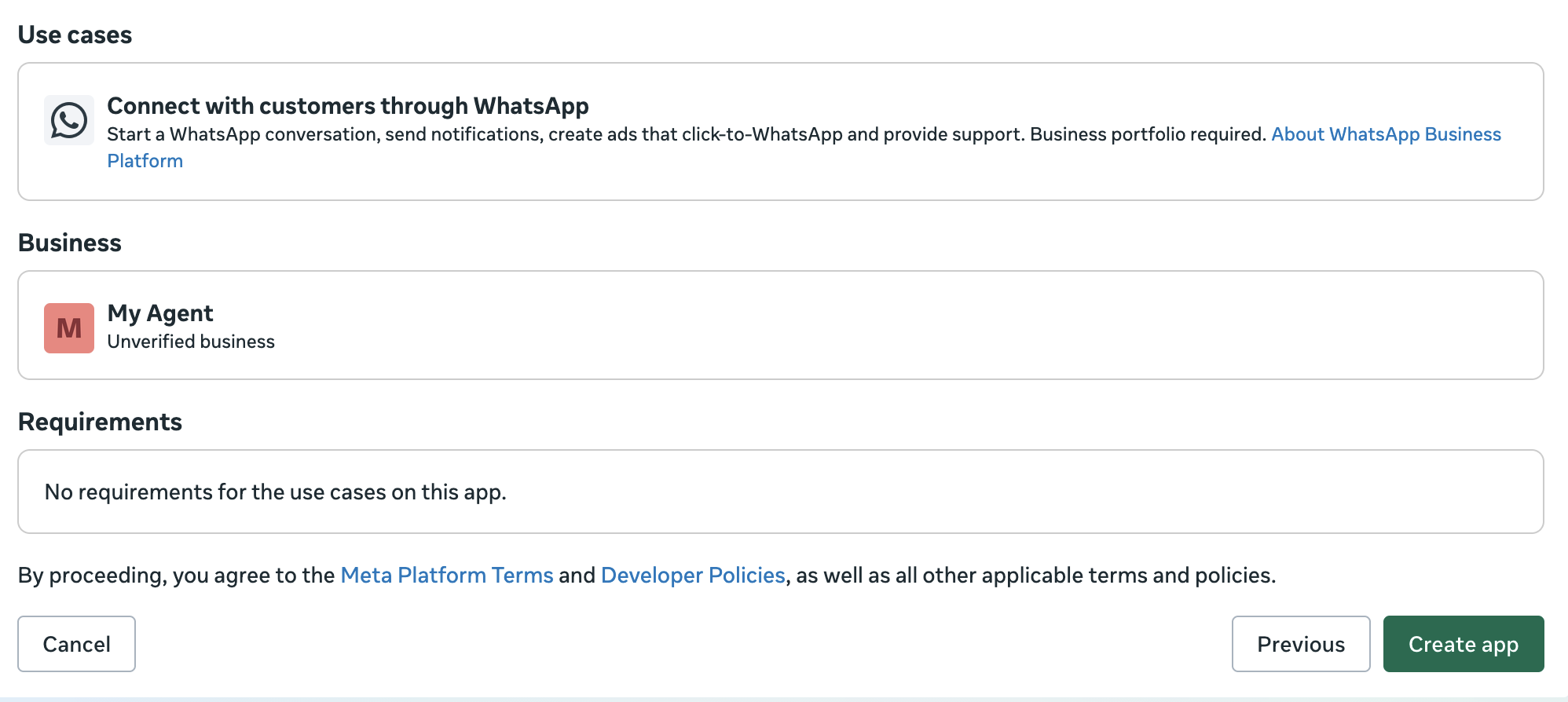
- Under use cases, pick Business messaging, then Connect with customers through WhatsApp.
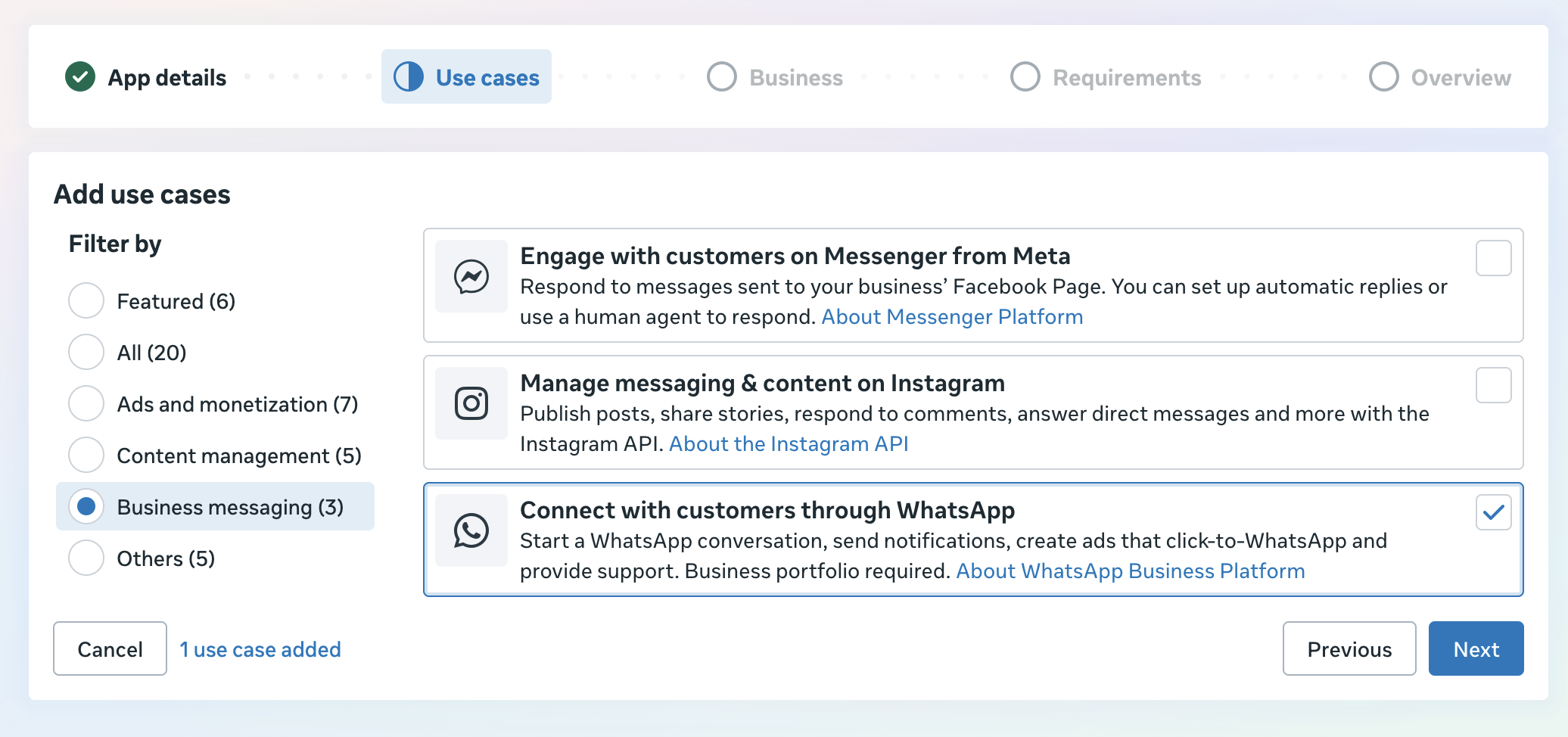
- On the Business step:
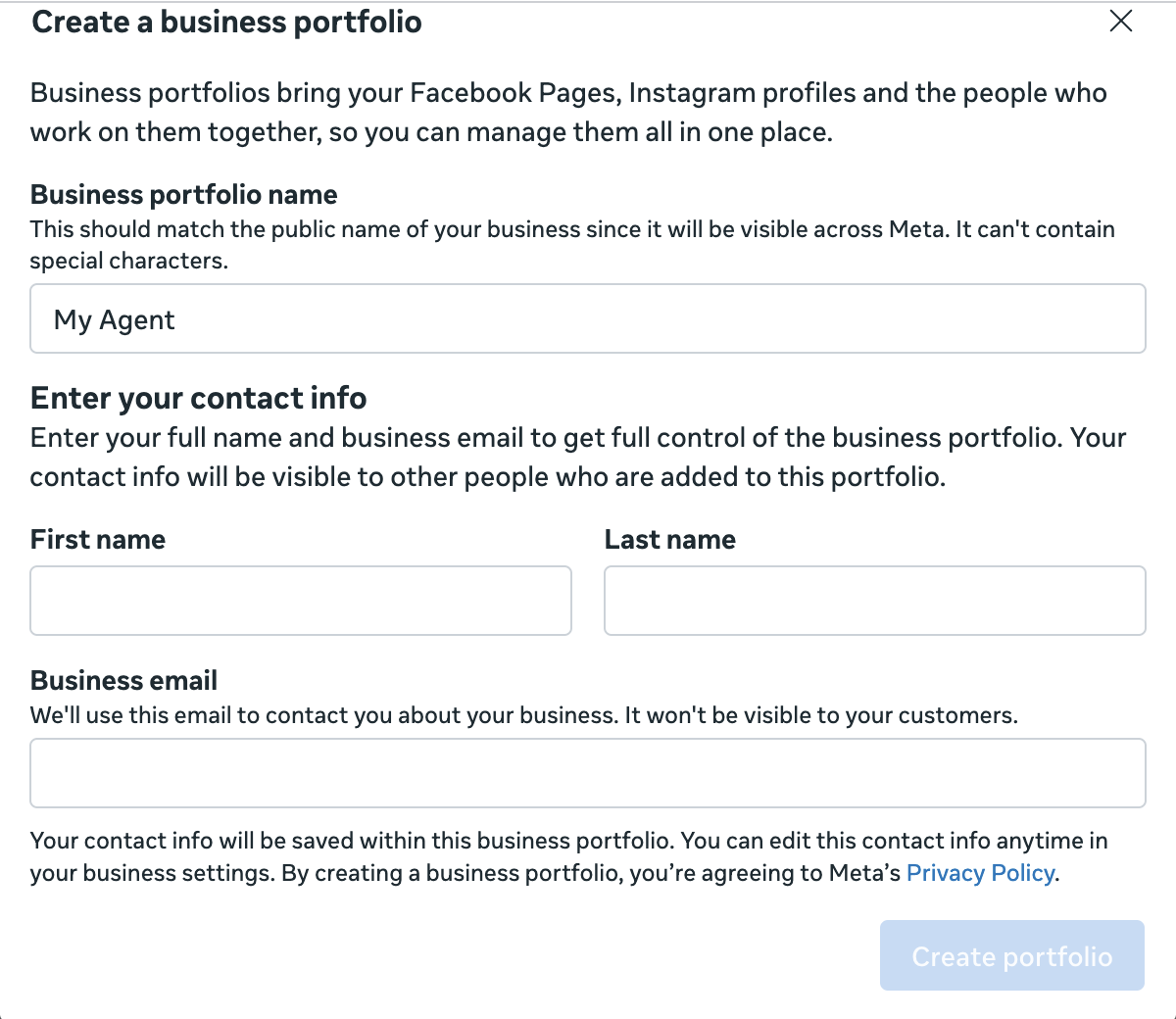
- Create a business portfolio only if you do not have one already. Use <Your-Name>'s Assistant as the business portfolio name. Also enter your contact details.
- Verification is not required. Click Verify later.
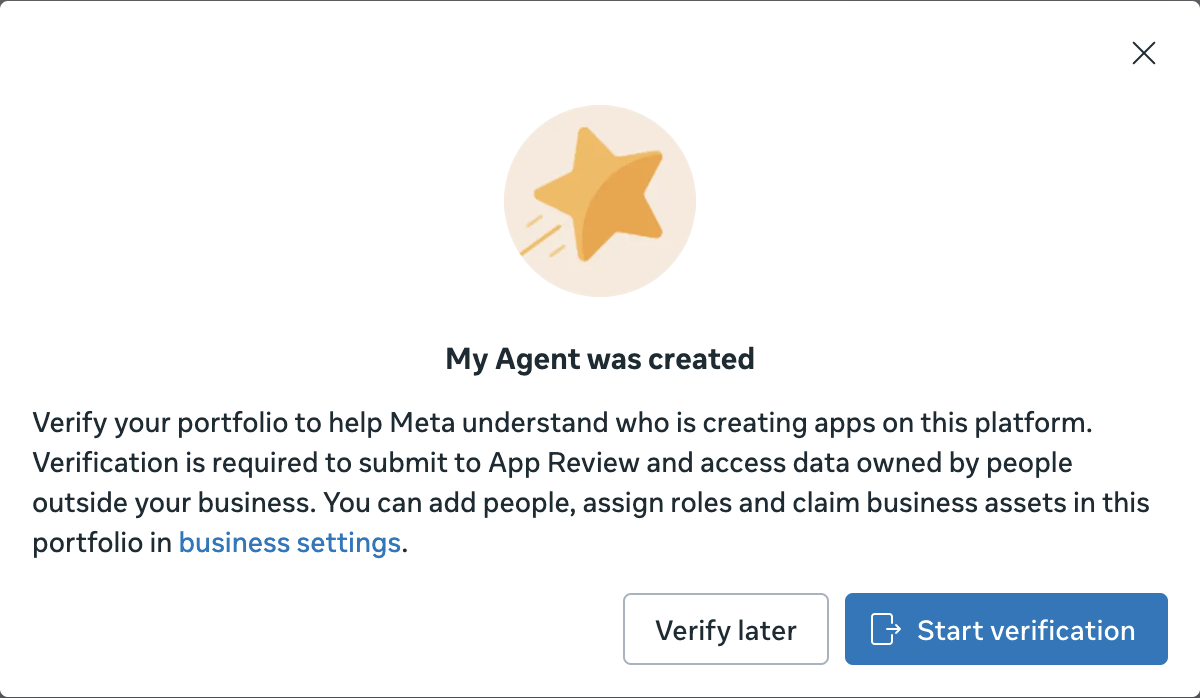
- Select the portfolio you just created.
- Create a business portfolio only if you do not have one already. Use <Your-Name>'s Assistant as the business portfolio name. Also enter your contact details.
- Requirements: if everything so far is right, you will see "No requirements identified." Click Next.
- Review your details and click Create app.
2Open the WhatsApp use case
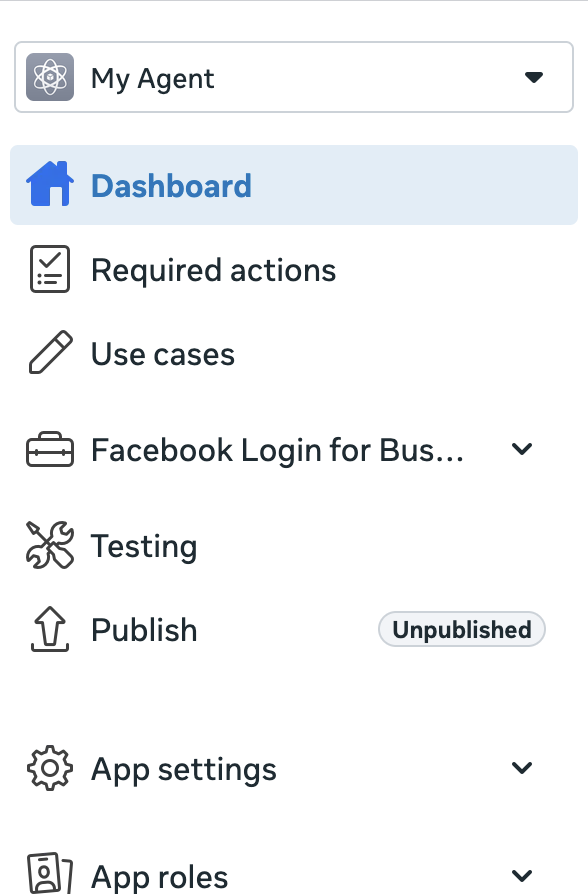
Click Use cases in the left sidebar.
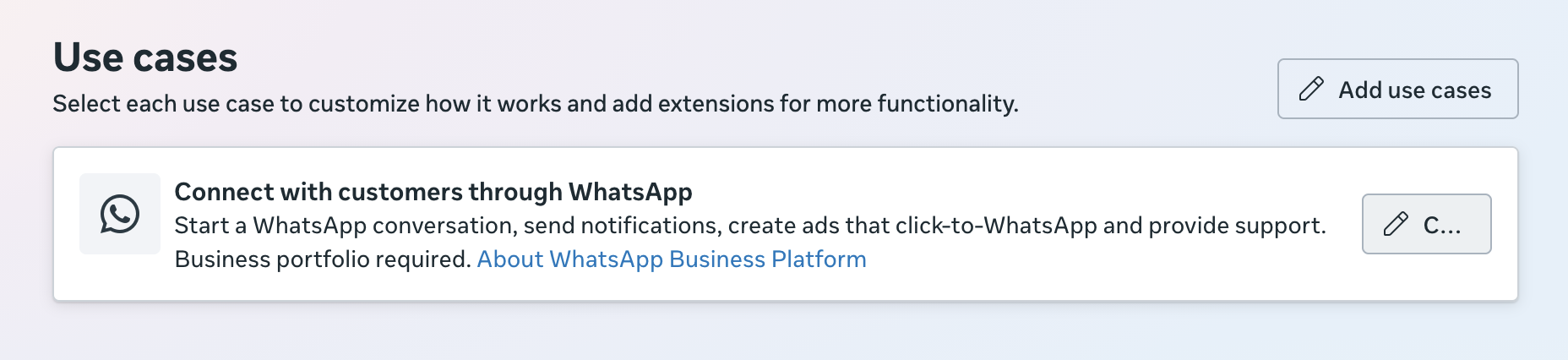
Then click the customize button, the pencil icon, on the Connect with customers through WhatsApp card.
3Request a test phone number
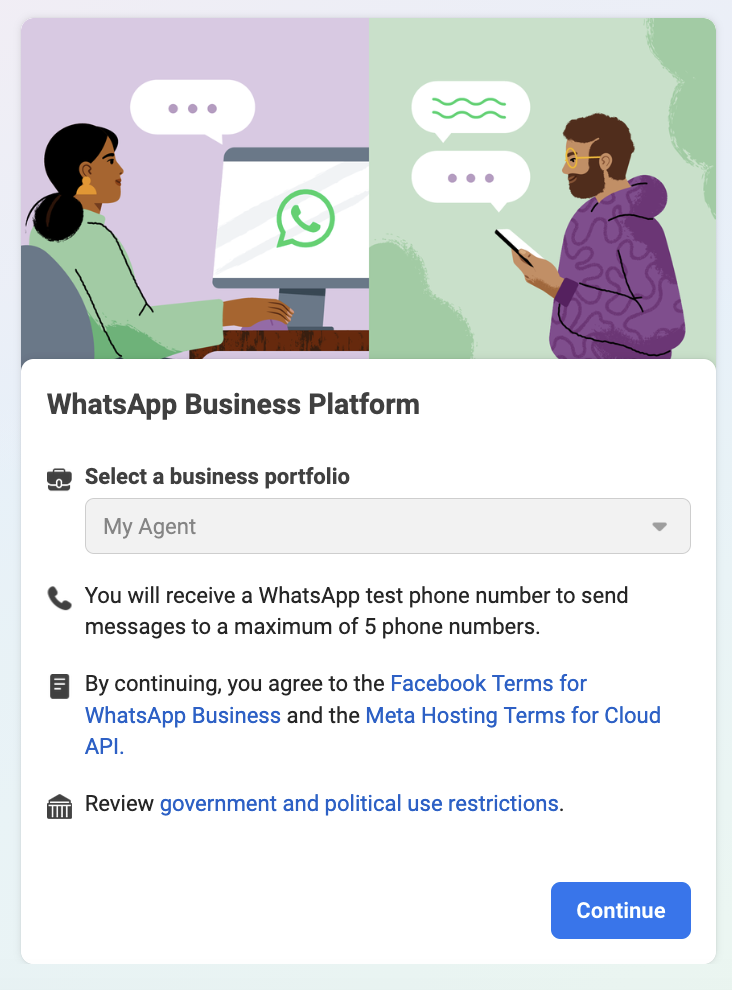
Step 2 takes you to a new page. Check that the right business portfolio is selected, then click Continue.
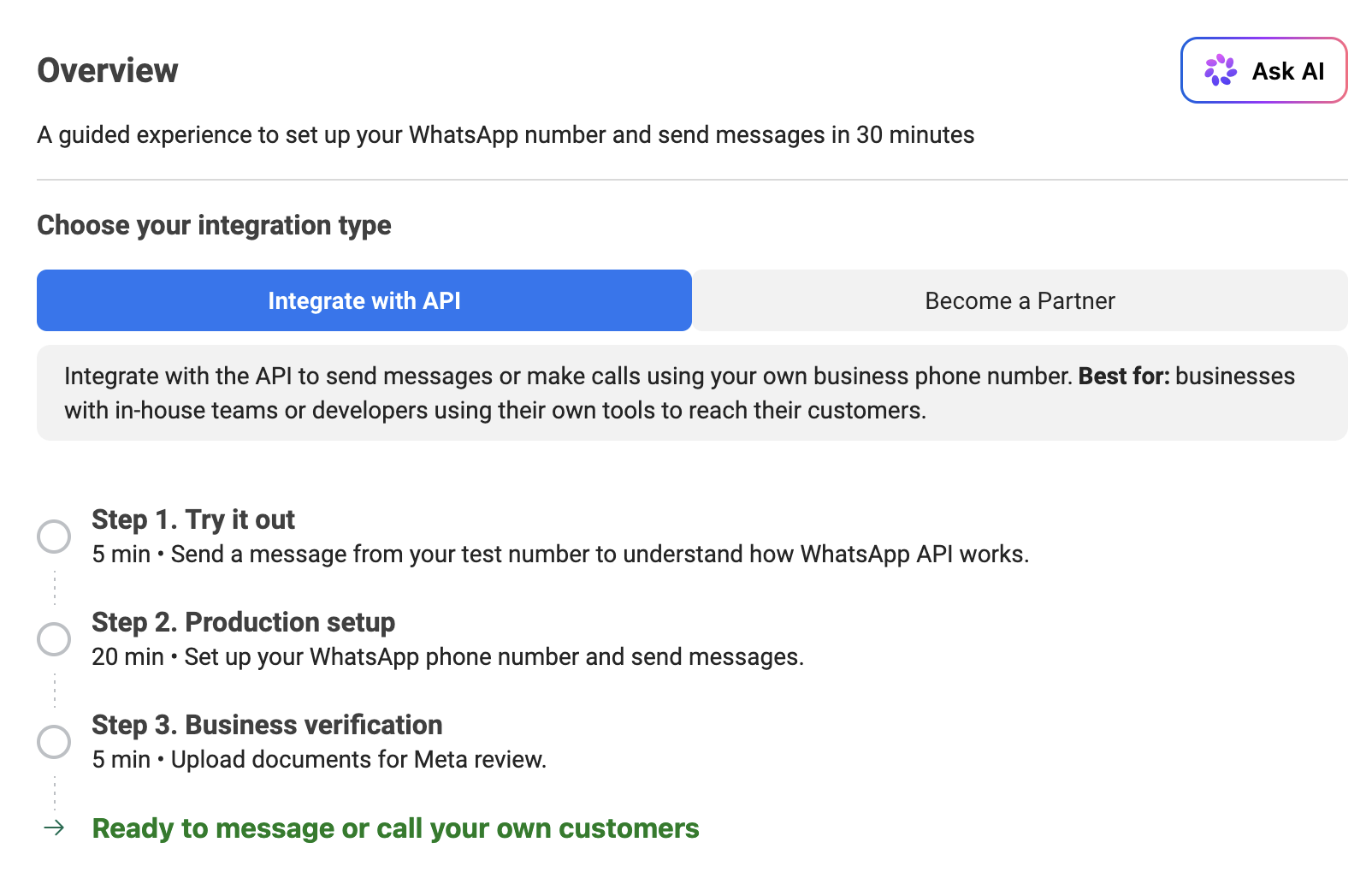
This opens a three-step overview. For now you only need to partly complete step 1. Click Step 1. Try it out.
4Copy the phone number ID and register your own phone number
- Copy the Phone number ID and the WhatsApp Business account ID, and add both to your agent's settings.
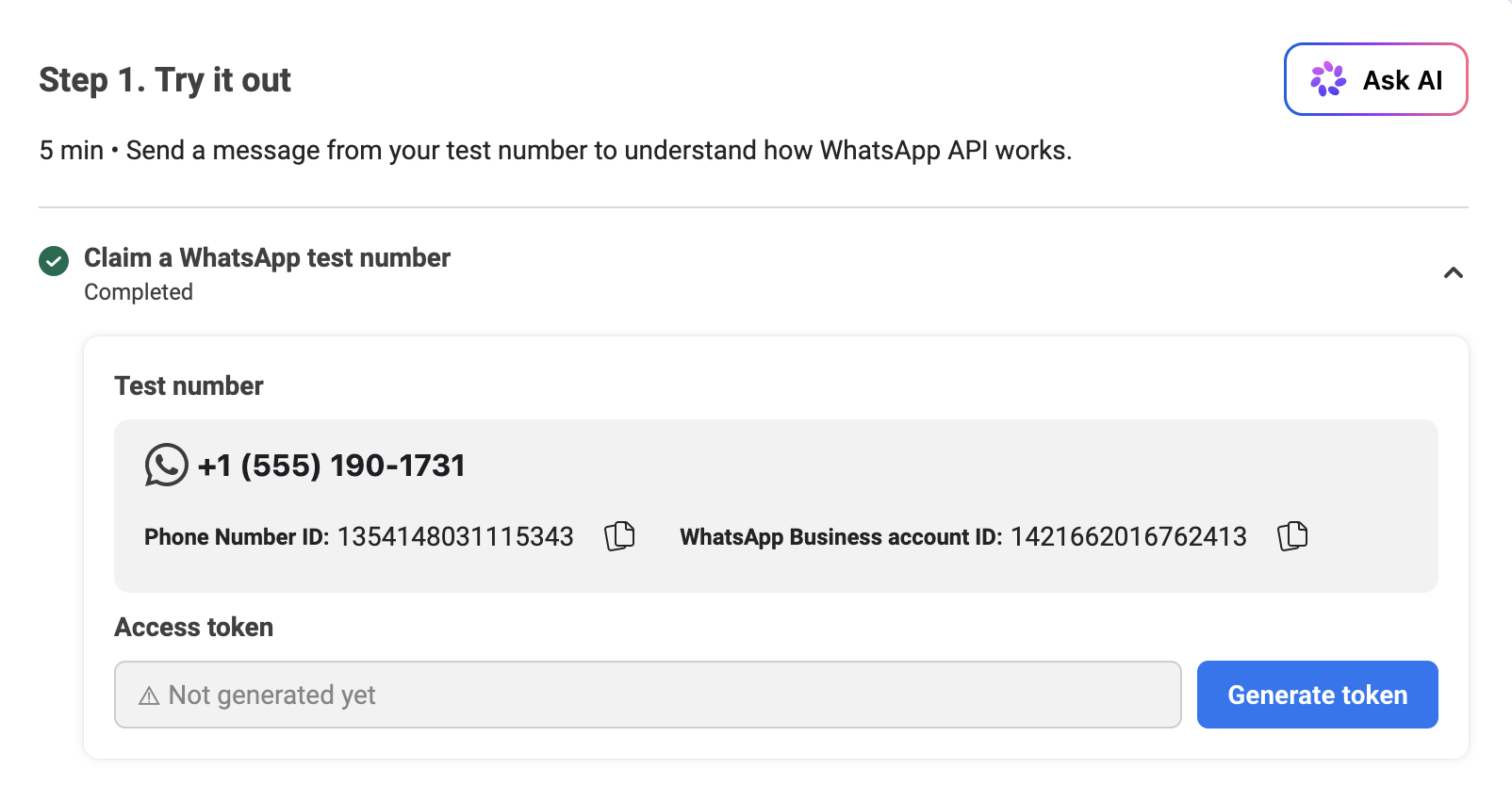
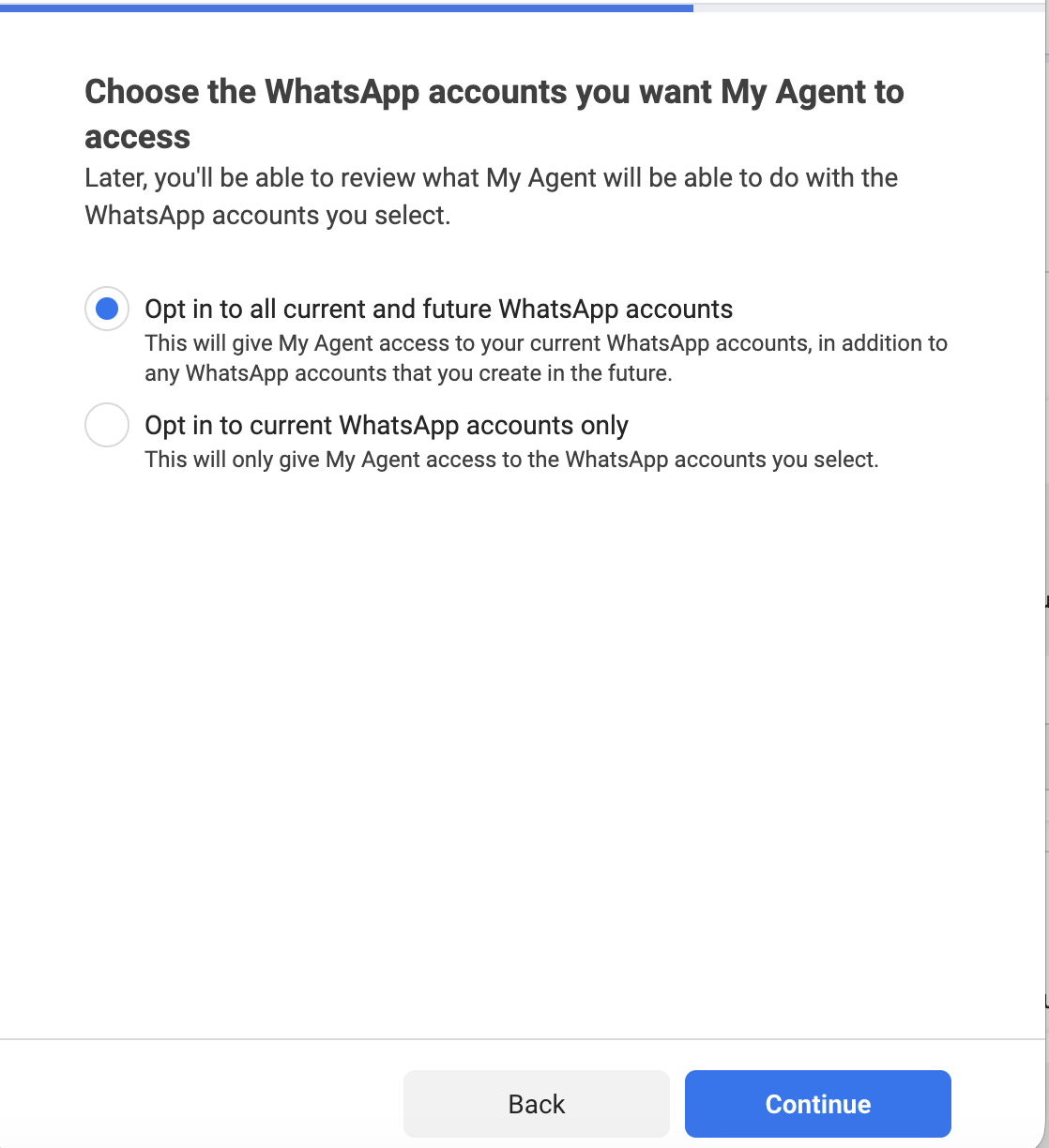
- Click Generate token, choose Opt in to all current and future WhatsApp accounts, Continue, then Save.
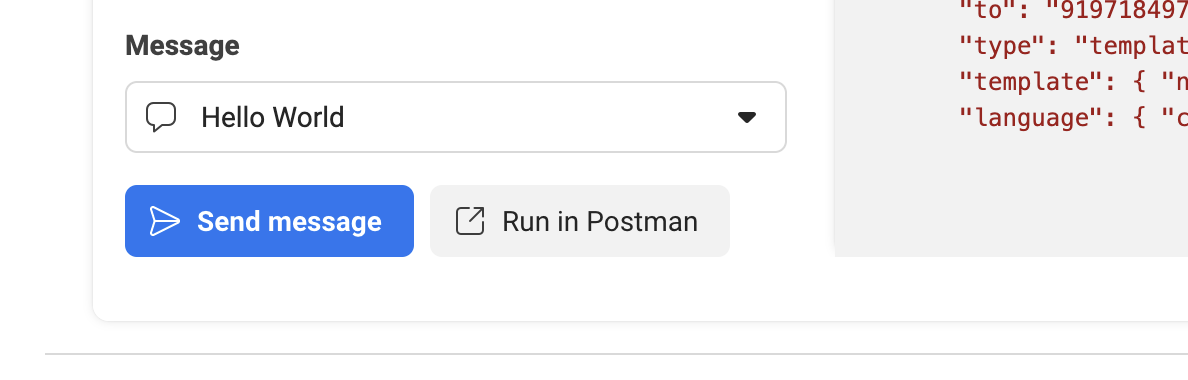
- Finally, click Select a recipient number → Manage phone number list, add your phone number and verify the 5-digit code WhatsApp sends you. Click Send message and it should arrive on your phone.
5Create a system user and a permanent access token
In a second new tab, go to business.facebook.com and select the business portfolio you created in the first step.
Click the settings icon at the bottom left of the sidebar. A second sidebar opens: select System users and create a new system user named Salts with the Admin role.
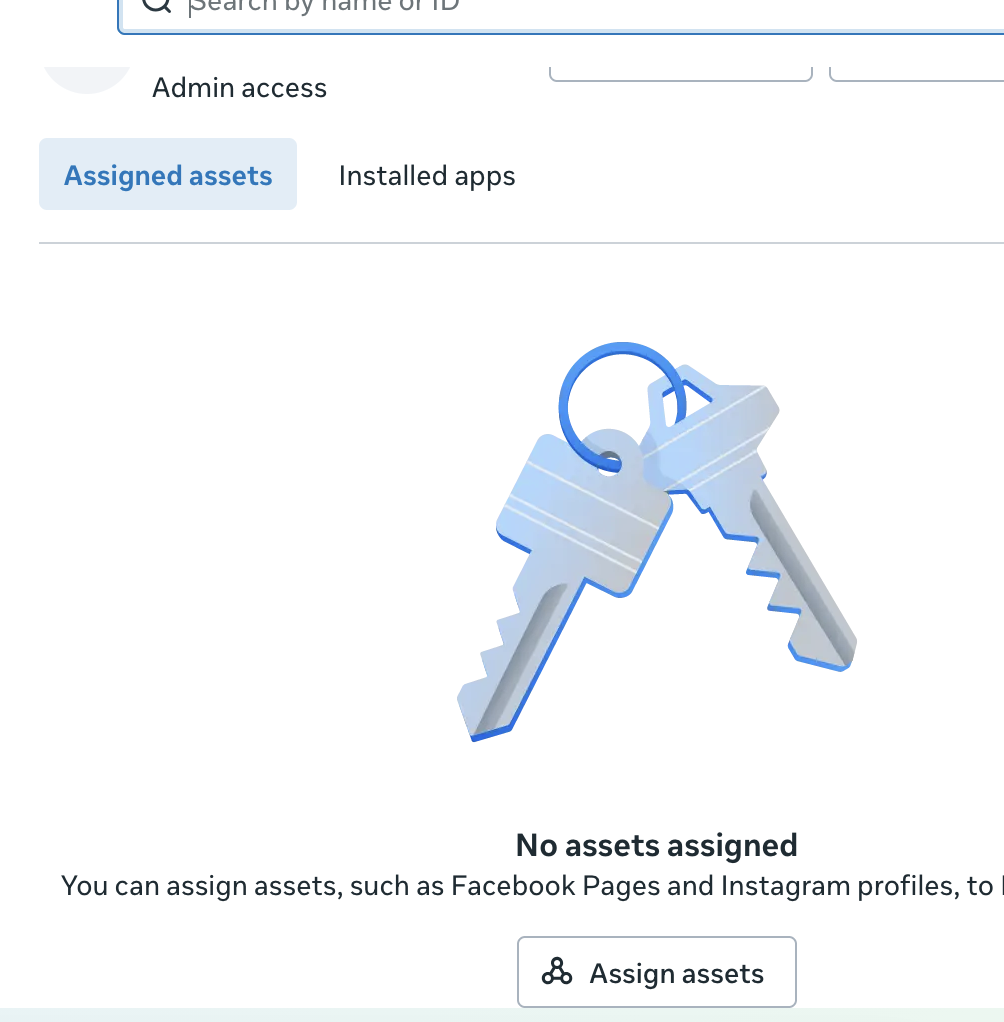
Once it is created, click Assign assets.
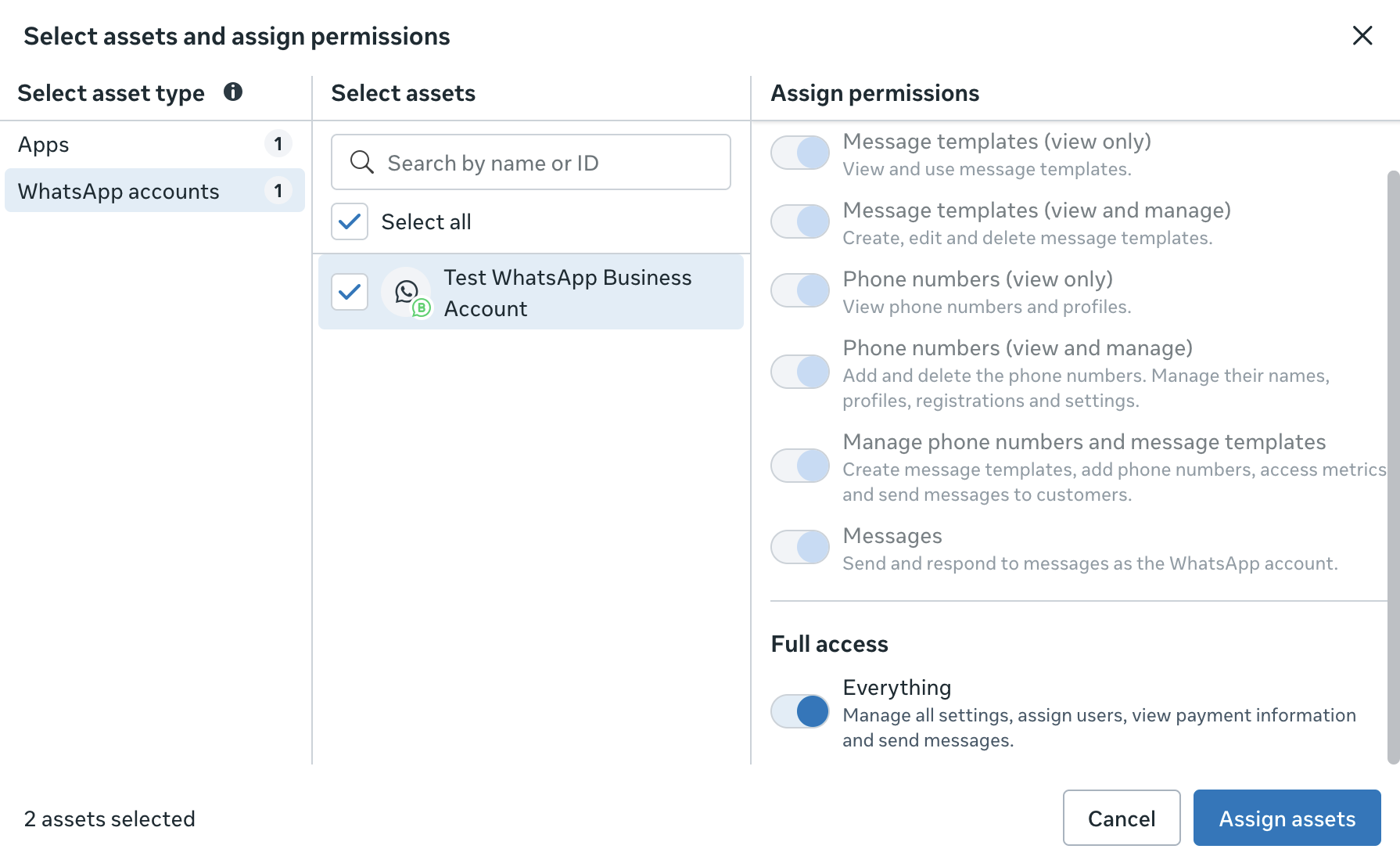
In the dialog, select your app and your WhatsApp account, and turn on Full access for both.
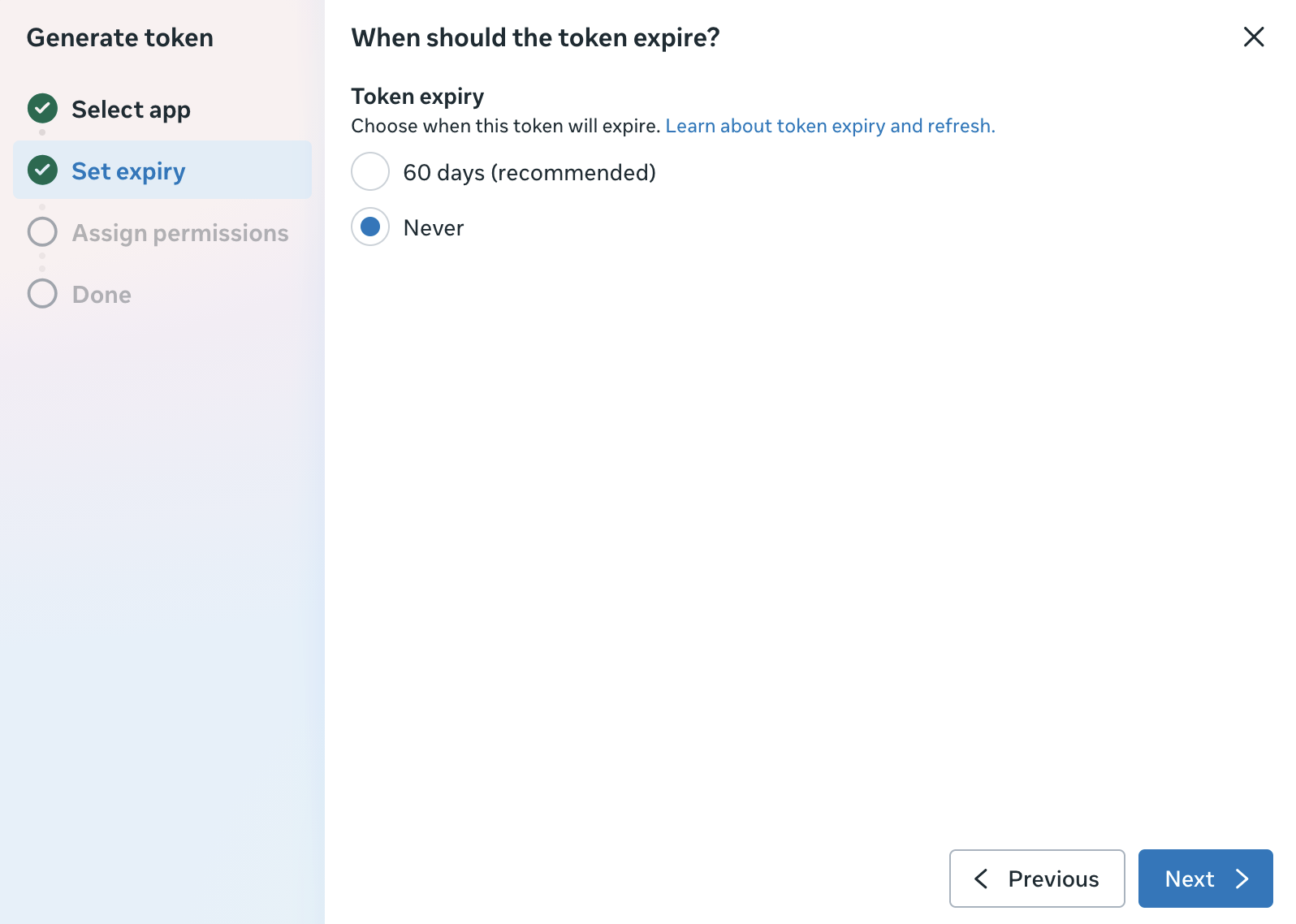
Now click Generate token and follow the process. Select your app, then set the expiry to Never.
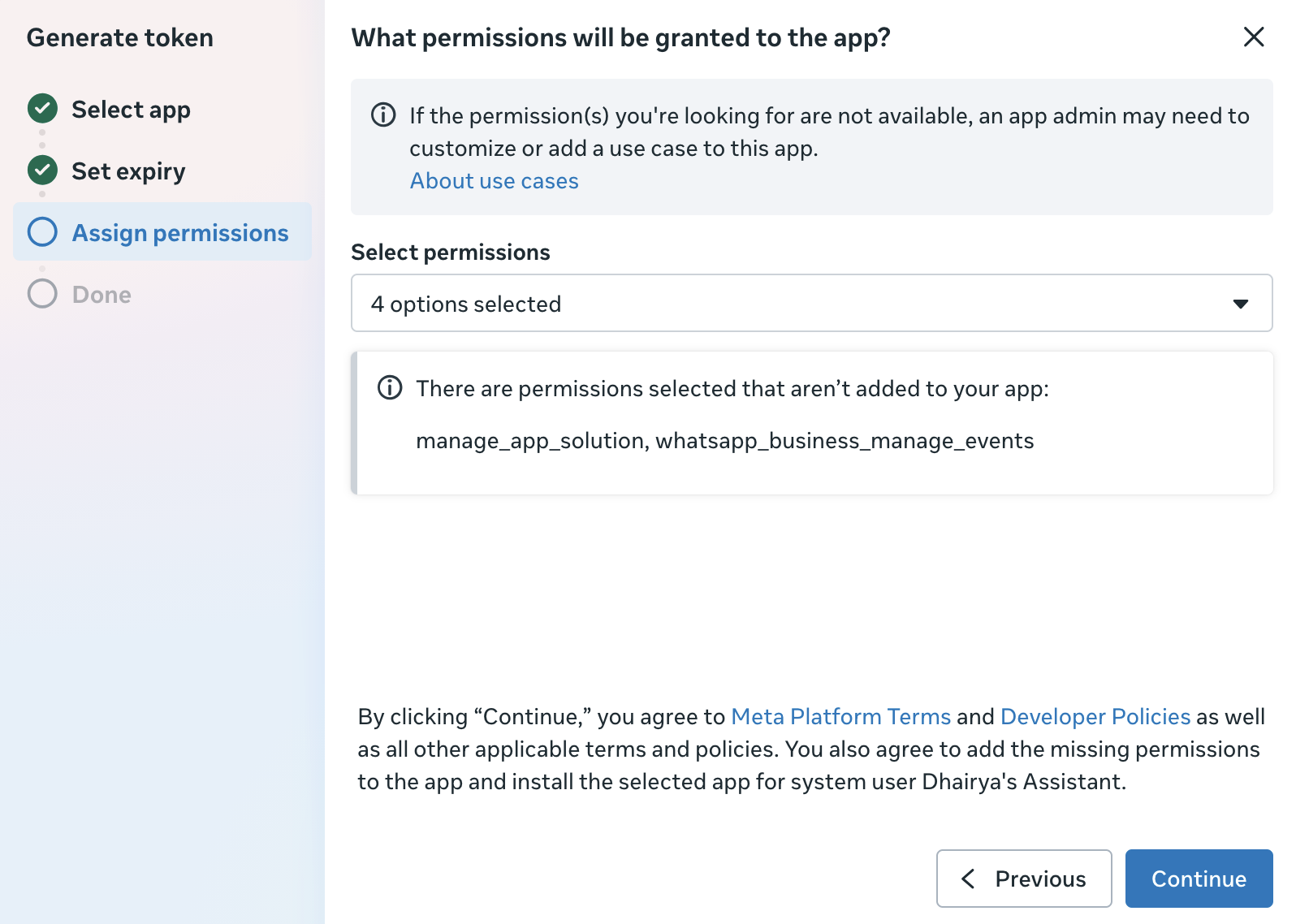
On the permissions screen, select every permission in the list.
You might need to refresh the page after creating the system user and after assigning assets. Assigned asset changes can take time to propagate, and the Generate token button will not work until they do.
The token will only be shown once. Copy it into the Access token field in your agent's settings before closing the dialog.
6Get the app secret
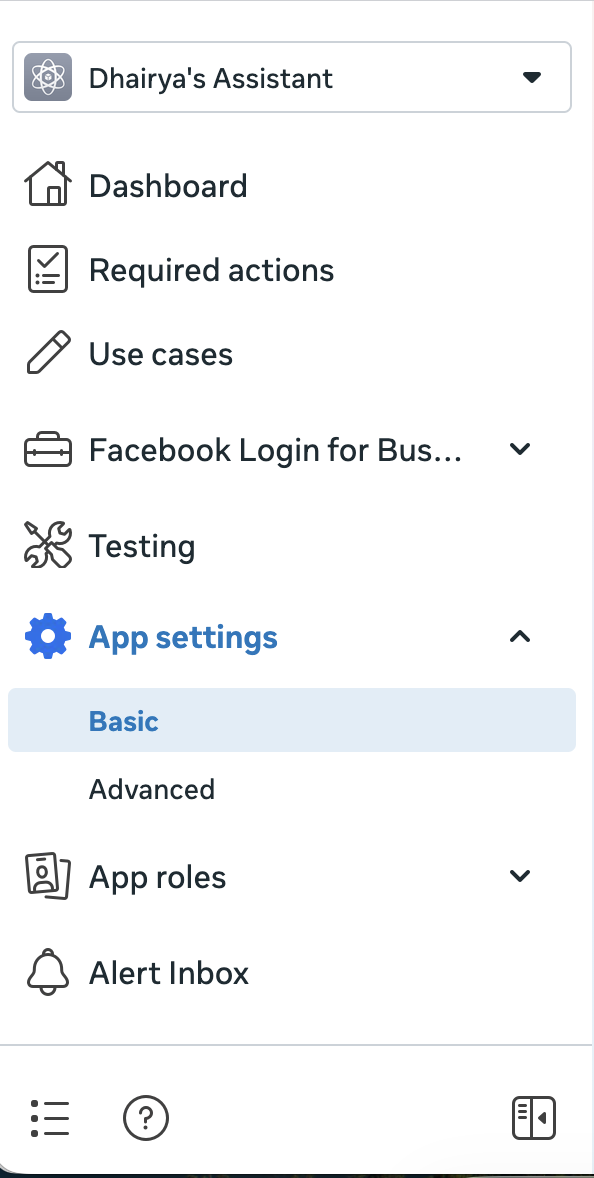
In a third new tab, go to developers.facebook.com. In the left sidebar, open App settings and select Basic.
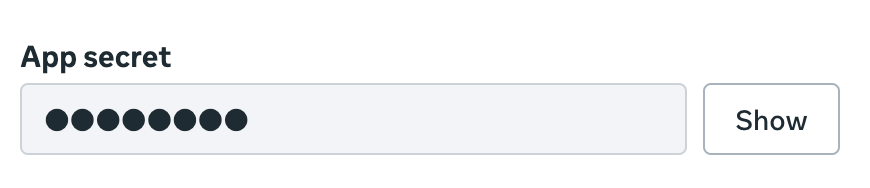
Click Show next to App secret. Copy the value into the App secret field in your agent's settings.
7Configure the webhook
Almost there. Go back to the first tab you left open in step 3, the one with the three-step overview. Click Step 2. Production setup.
Add this callback URL:
https://salt-agent.dhairyashah98.workers.dev/whatsapp/webhook/agent-id-goes-hereFind your agent ID in the URL when you are talking to your agent on the web https://salts-agent-app.vercel.app/a/<find-agent-id-here>
Generate a verify token below, then copy it into your agent settings first:
No token yetOnce it is saved there, paste the same verify token into the Verify token field of the Configure webhook step and click Verify and save.

After the page refreshes, visit the same step again and check that messages is subscribed under the webhook configuration. It is on by default.

You are done
Message the test number from your phone. Your agent answers in the same chat, with the same memory, tools and settings it has in your browser, and the conversation shows up in your sessions like any other.
Keep the 24-hour window in mind: if you have not messaged your agent for a day, WhatsApp will not let your agent reach you until you message it again.
Footnotes
- The most common mistake is an incorrect callback URL, or a verify token that does not match between the Meta dashboard and your agent settings. Check both first if messages are not going through.
- If messages stop going through, check business.facebook.com for account suspension notices. Some business portfolio names and app names are not allowed and can result in an immediate suspension.
- Creating more than one unverified business portfolio gets the newer portfolios suspended automatically. You may have to verify your business and ask for a review to get them back.
- If you would rather use a second number of your own than the test number WhatsApp provides, you can add and verify it on the same page as step 7. That exercise is left to the reader.